About The Lab
This guide covers NGINX Plus with App. Protect deployment as Kubernetes Ingress Controller, configure security policy & testing. Arcadia app is used as test application.
Note
All files in this lab guide are available in Github repo
Topology

- Client node
This node will be used as jump host and test client. It uses RDP protocol to access.
- App node
This is where we will deploy Arcadia Apps and NGINX Plus Ingress Controller. The Arcadia Apps is micro-services based hence k3s cluster need to be installed in this node.
- NGINX IC
Kubernetes Ingress Controller using NGINX Plus Ingress Controller with App. Protect enabled
- Main
The pod of main Arcadia app
- Backend
The pod of Arcadia app backend
- App2
The pod of Arcadia app money transfer service
- App3
The pod of Arcadia app referral service
- Local-registry
Docker registry running on local kubernetes cluster
- Syslog
Will be used to collect App. Protect logs
- Docker
Self-explained
Your Lab. Deployment
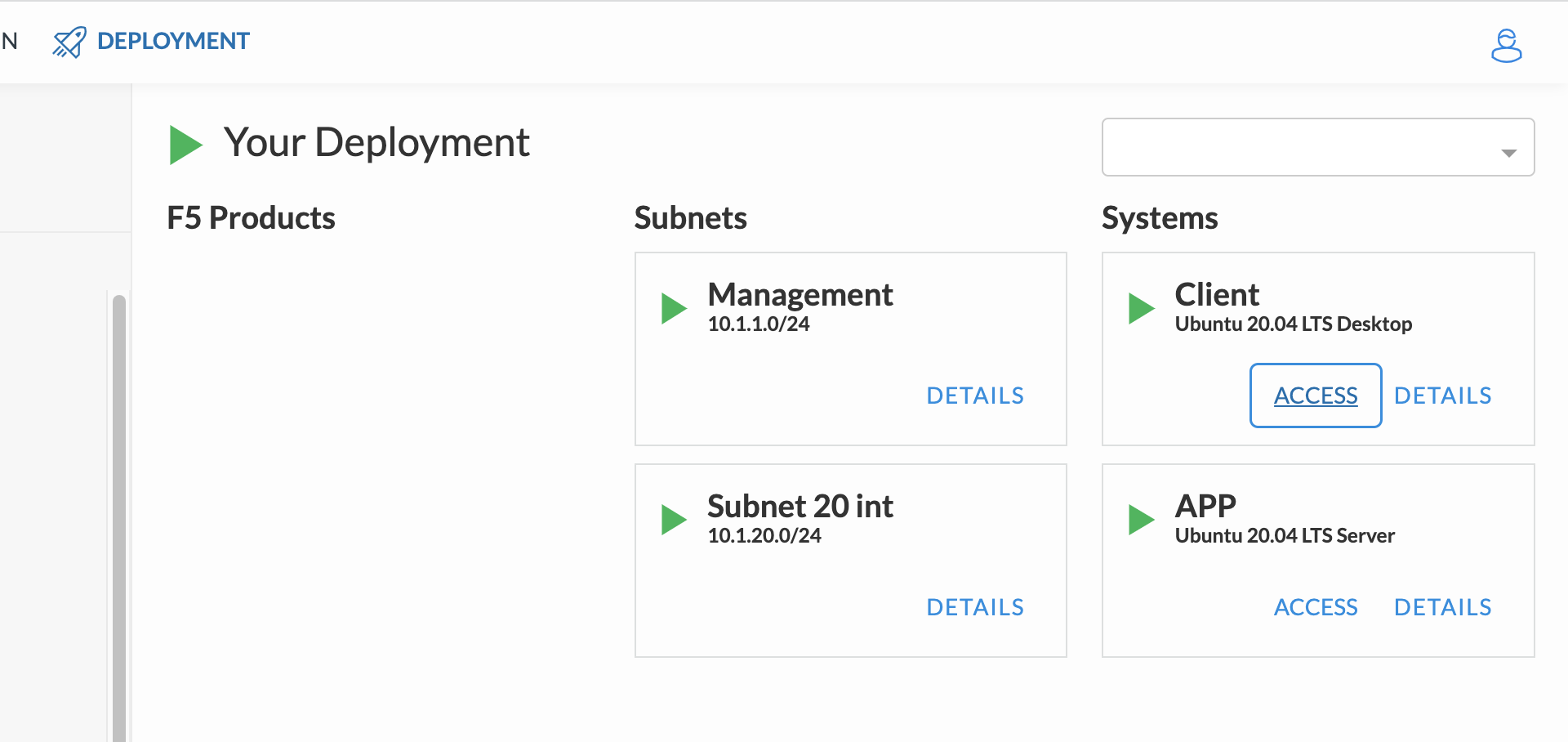
Check you lab. deployment status, it should be all green and ready. You can use ACCESS button in Client and APP node to see available access options.
Reset ubuntu User Password
Warning
You need to execute this step. Because default ubuntu user password is unknown hence we need to reset it.
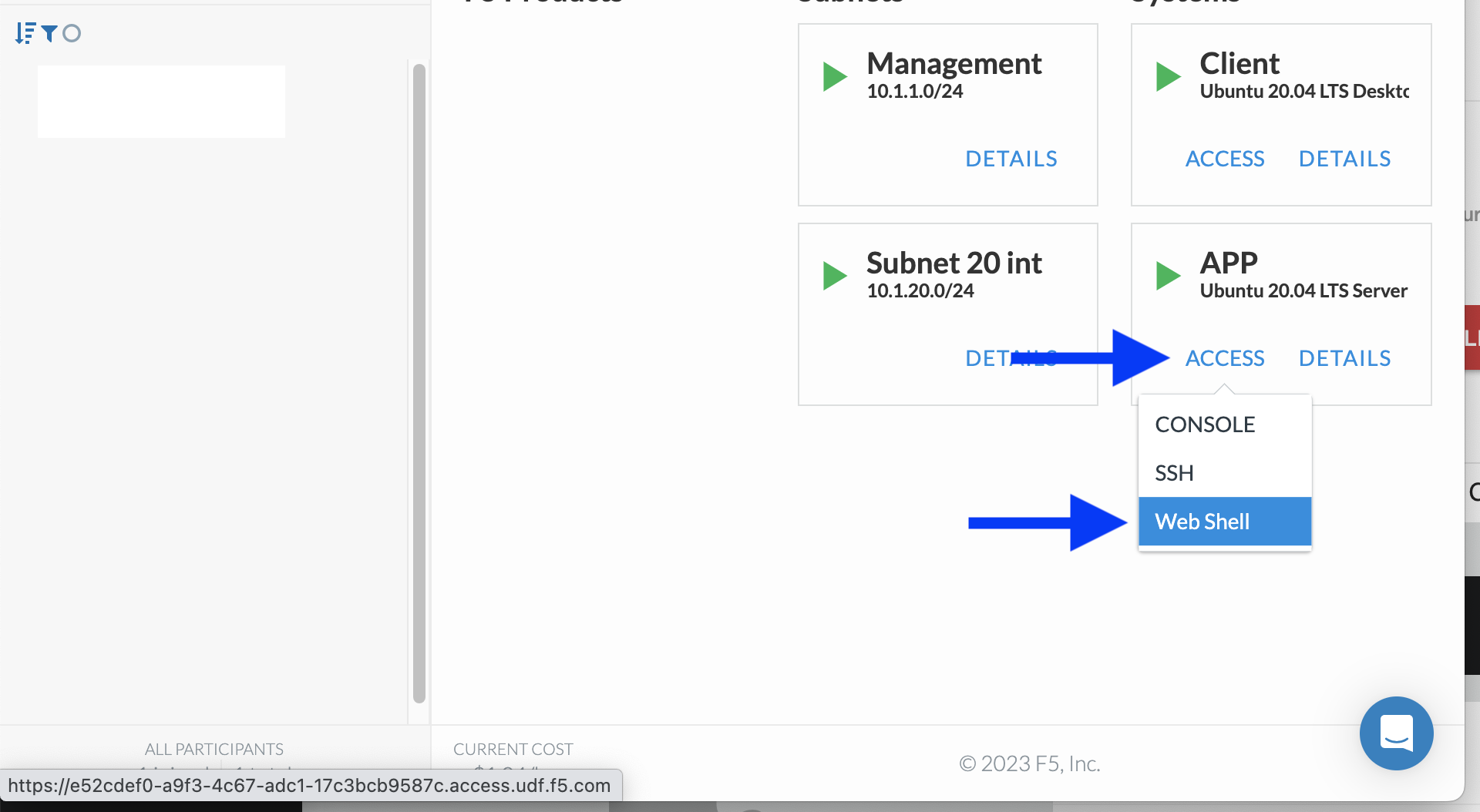
Now we will change the password for ubuntu user. In your deployment, from APP node select ACCESS > Web Shell
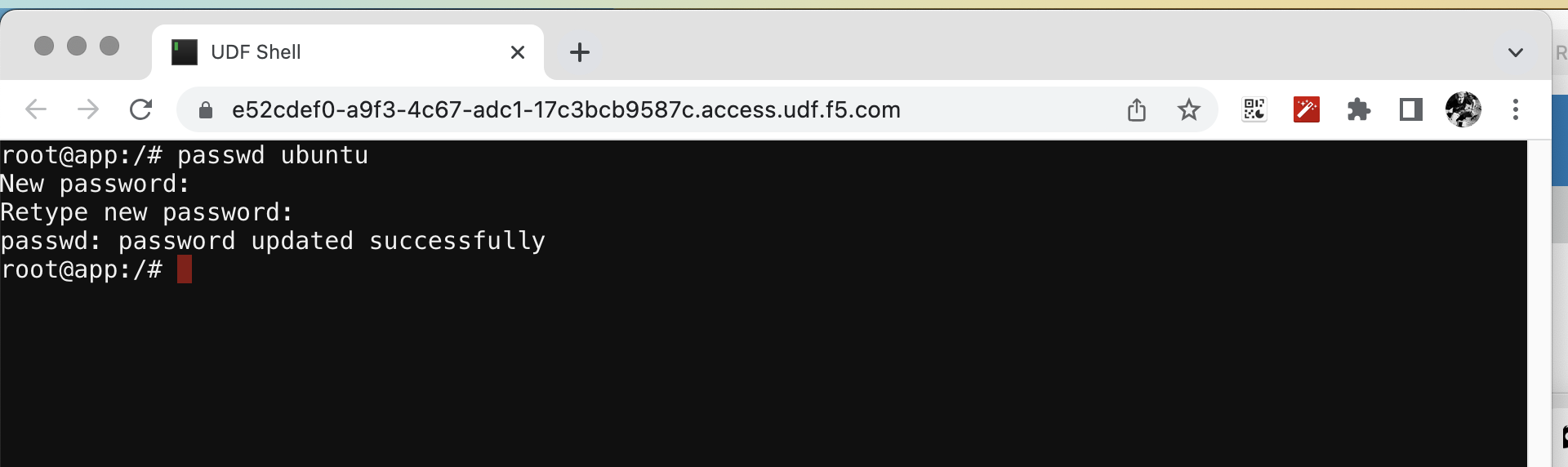
Now you should got root prompt from the Web Shell. Use below command to change ubuntu user password:
# passwd ubuntu
When prompted, type ubuntu in the New password & Retype new password prompt
Access The Client Node Using xRDP
Every step in this lab. will be done from Client node over remote desktop. This method protects from losing session when network disconnect happen. You will need a RDP client installed in your laptop / PC.
In your deployment, from Client node select ACCESS > xRDP > 1280x800. Then a RDP file will be downloaded.
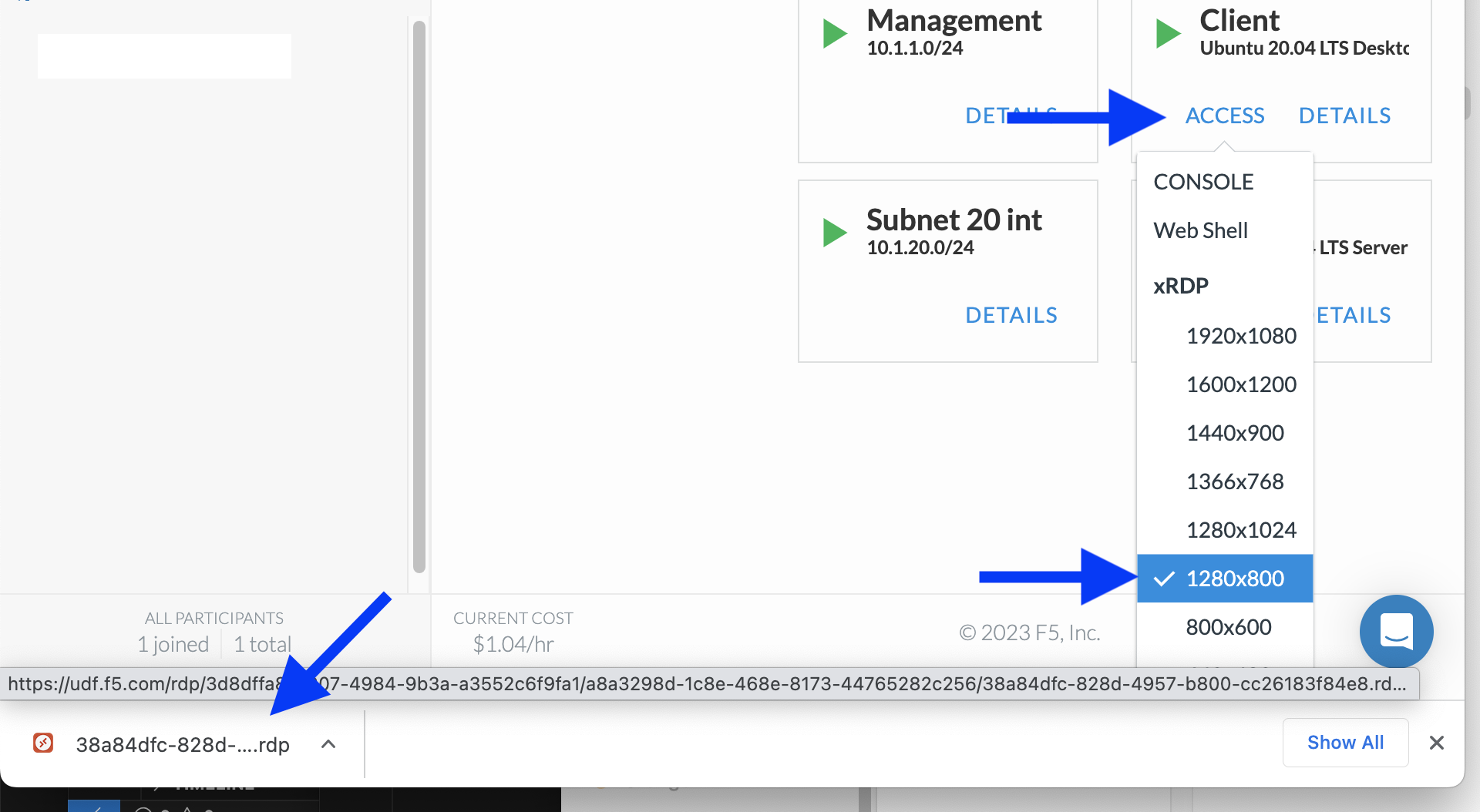
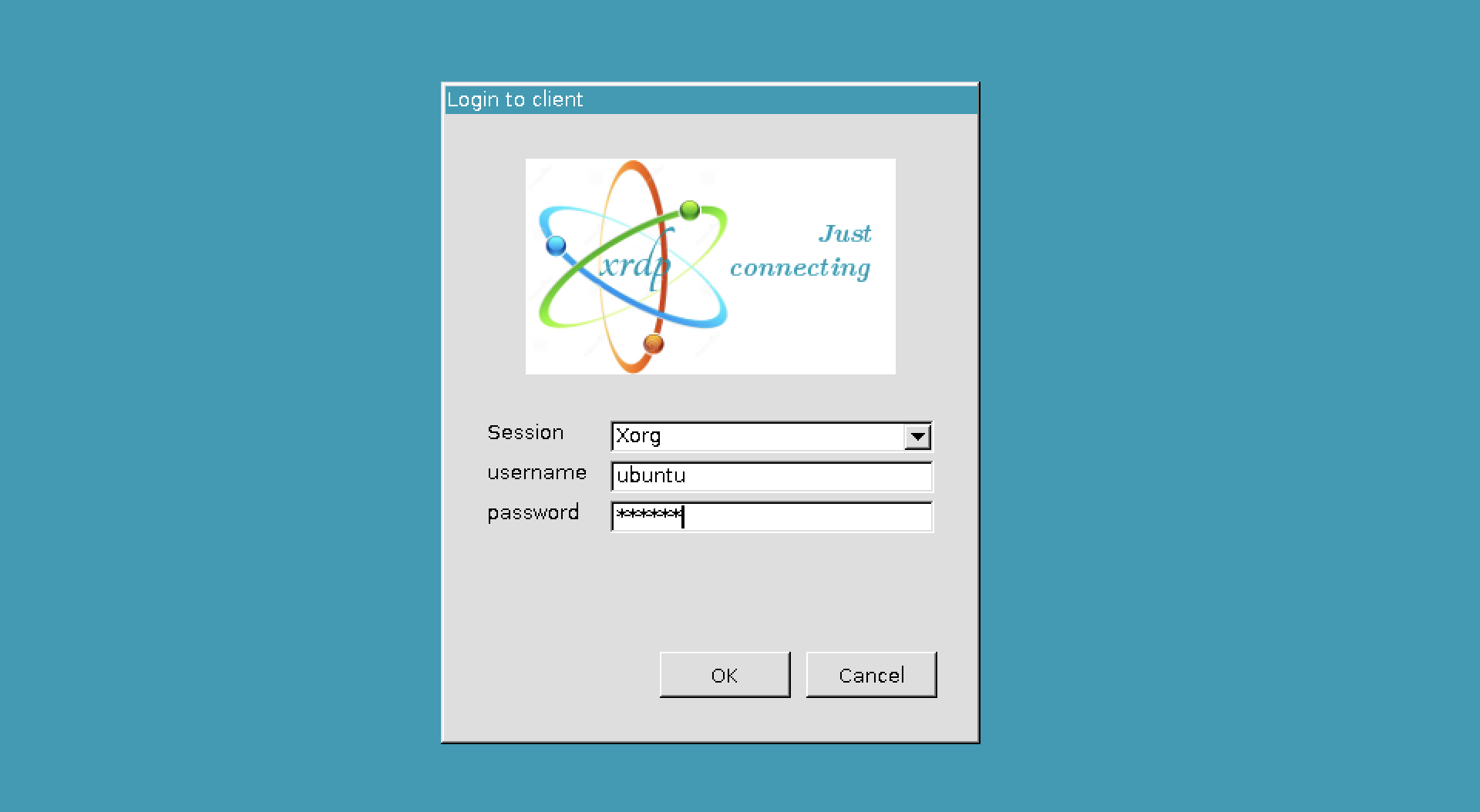
Click on downloaded RDP file to open it in RDP client. When prompted, enter credential ubuntu/ubuntu to login.
Access The APP Node From Client Node
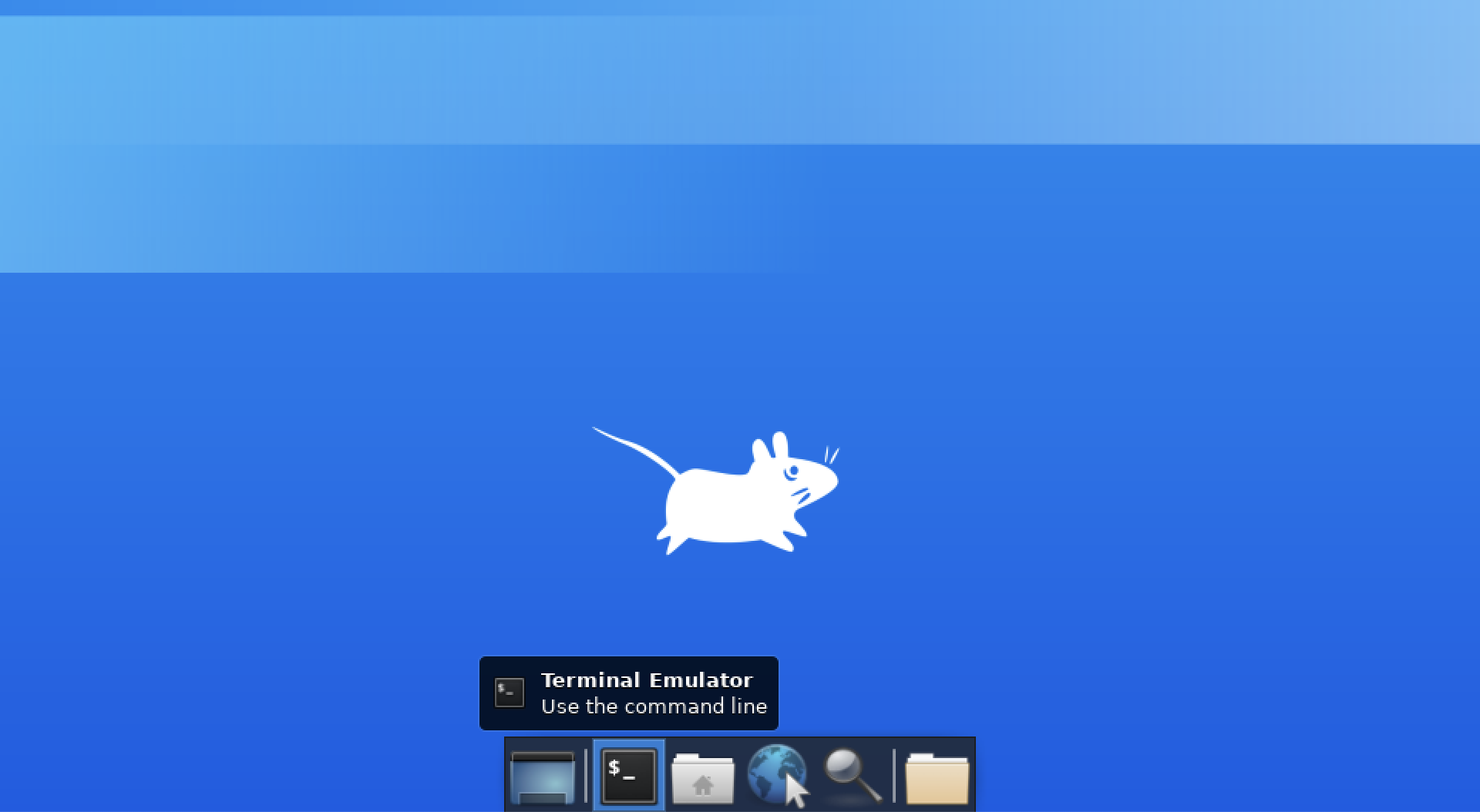
After login to Client node, open Terminal Emulator from dock menu.
then remove known_hosts file:
$ rm /home/ubuntu/.ssh/known_hosts
Now access to APP node:
$ ssh app
The authenticity of host 'app (10.1.1.4)' can't be established.
ECDSA key fingerprint is SHA256:166PrdLUQB+VQ1tImslAFNkBRsxz1vHEdOLmDWWnXTk.
Are you sure you want to continue connecting (yes/no/[fingerprint])? yes
Type “yes” to accept, then type “ubuntu” as password when prompted:
Warning: Permanently added 'app,10.1.1.4' (ECDSA) to the list of known hosts.
ubuntu@app's password:
Now you should be able to login to APP node as ubuntu user from Client node.